
 0 Comments

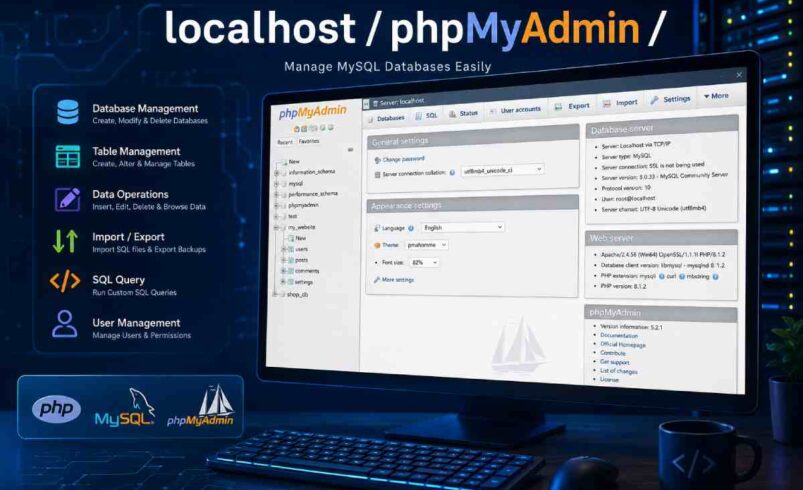
Have you just finished the installation of XAMPP, WAMP, MAMP or Laragon and the chances are high you must have visited localhost/phpMyAdmin? PhpMyAdmin is the most well-known tool nowadays used to handle MySQL and MariaDB databases with a nice and intuitive graphical interface, accessed through your internet browser.
No need for you to remember SQL commands for each database operation! With phpMyAdmin, you will be able to create new databases, modify tables, import your .SQL files to databases, export backed-up SQL files from databases, alter database fields & records, run your own custom SQL commands-all from your web browser.
Whether you are creating your WordPress site, developing a PHP application, learning SQL or testing some software locally, localhost/phpMyAdmin can be of extreme help for you.
In this tutorial, you’ll learn a good lot about phpMyAdmin from accessing it locally to advanced functionality, security concerns, common issues and answers to several frequently asked questions.
What Is localhost/phpMyAdmin?

localhost/phpMyAdmin refers to the phpMyAdmin application running on your own computer through a local web server.
Normally, the URL looks like:
http://localhost/phpmyadmin/
or
http://127.0.0.1/phpmyadmin/
Instead of connecting to an online database server, you are simply working with the databases held on your machine.
This setup is ideal for:
- Learning MySQL
- WordPress development
- PHP projects
- Laravel applications
- CodeIgniter development
- Database testing
- Offline website development
What Is phpMyAdmin?
phpMyAdmin is a free, open-source web application written in PHP.
It provides a graphical interface for managing:
- MySQL databases
- MariaDB databases
Rather than typing long SQL commands, you can perform almost every database operation using menus and buttons.
Some common tasks include:
- Creating databases
- Creating tables
- Editing rows
- Importing SQL files
- Exporting backups
- Managing users
- Running SQL queries
- Optimizing tables
- Repairing databases
Why Developers Prefer localhost/phpMyAdmin
Developers, with many database tools around, still like phpMyAdmin, the most popular. Because:
It spares development. Developers no longer have to type manually through their database.
Advantages include:
- Beginner friendly
- Browser-based
- Free forever
- Cross-platform support
- Fast database management
- Easy backups
- Compatible with most PHP applications
- Supports both MySQL and MariaDB
How localhost Works
The term localhost refers to your own computer acting as a server.
Instead of accessing a website online:
https://example.com
you access:
http://localhost/
Your local web server processes the request without requiring an internet connection.
The most common local server packages include:
- XAMPP
- WAMP
- MAMP
- Laragon
- AMPPS
Each package includes:
- Apache
- PHP
- MySQL or MariaDB
- phpMyAdmin
Understanding the Components
| Component | Purpose |
| Apache | Web server |
| PHP | Server-side scripting language |
| MySQL | Database server |
| phpMyAdmin | Database management interface |
Together, these create a complete local development environment.
How to Access localhost/phpMyAdmin
The process is straightforward.
Step 1
Start Apache.
Step 2
Start MySQL.
Step 3
Open your browser.
Step 4
Visit:
http://localhost/phpmyadmin/
If everything is configured correctly, you’ll see the phpMyAdmin dashboard.
The phpMyAdmin Dashboard Explained
The dashboard contains several useful sections.
Navigation Panel
Displays all databases.
Examples:
- information_schema
- mysql
- performance_schema
- wordpress
- test_db
Main Workspace
Shows information about the selected database.
From here you can:
- Browse tables
- Edit data
- Run SQL
- Export
- Import
SQL Tab
Allows execution of custom SQL commands.
Example:
SELECT * FROM users;
Import Section
Upload:
- SQL files
- ZIP archives
- CSV files
Export Section
Create backups in formats like:
- SQL
- CSV
- XML
- JSON
- PDF (supported configurations)
Creating Your First Database
Creating a database requires only a few clicks.
Steps
- Open phpMyAdmin.
- Click New.
- Enter a database name.
- Select UTF8MB4 collation.
- Click Create.
Your database is immediately ready for use.
Creating Tables
After creating a database:
- Select the database.
- Enter the table name.
- Choose the number of columns.
- Configure data types.
- Save.
Typical columns include:
- id
- name
- password
- created_at
Common SQL Data Types
Choosing the right data type is important for performance and storage.
| Data Type | Best Used For |
| INT | Numbers |
| BIGINT | Large numbers |
| VARCHAR | Short text |
| TEXT | Long text |
| DATE | Calendar dates |
| DATETIME | Date and time |
| BOOLEAN | True or False |
| FLOAT | Decimal values |
Importing an SQL Database
One of phpMyAdmin’s biggest advantages is importing databases quickly.
Steps:
- Open database.
- Click Import.
- Select SQL file.
- Click Go.
Within seconds, all tables are created automatically.
This feature is commonly used when:
- Installing WordPress
- Migrating websites
- Restoring backups
- Sharing projects
Exporting a Database
Backing up your database is equally easy.
Navigate to:
Export → Quick → SQL → Go
The database downloads as an SQL file.
Keep regular backups to avoid accidental data loss.
Running SQL Queries
Sometimes writing SQL manually is faster.
Example:
SELECT * FROM customers;
Update example:
UPDATE users
SET status=’Active’
WHERE id=5;
Delete example:
DELETE FROM products
WHERE id=20;
phpMyAdmin highlights syntax errors before execution, making learning SQL much easier.
Managing Database Users
phpMyAdmin lets administrators manage database users without using terminal commands.
You can:
- Create new users
- Change passwords
- Assign permissions
- Delete users
- Restrict access
Proper user management improves both organization and security.
localhost/phpMyAdmin for WordPress
WordPress stores nearly all of its content inside a MySQL database.
Using phpMyAdmin, you can:
- Reset passwords
- Change site URL
- Edit posts
- Fix plugin issues
- Repair databases
- Optimize tables
- Remove unwanted data
For local WordPress development, phpMyAdmin is an essential companion.
Common Errors and How to Fix Them
1. phpMyAdmin Page Not Found
Possible causes:
- Apache not running
- Incorrect installation path
- Missing phpMyAdmin folder
Restart your local server and verify the installation.
2. MySQL Won’t Start
This can happen because:
- Port conflicts
- Corrupted database files
- Another MySQL service already running
Check the server logs to identify the exact issue.
3. Access Denied
Usually caused by:
- Wrong username
- Incorrect password
- Authentication configuration issues
Review your MySQL credentials and configuration files.
4. Maximum Upload Size Exceeded
When importing large SQL files, PHP upload limits may block the process.
Increase:
- upload_max_filesize
- post_max_size
- max_execution_time
Then restart Apache.
Best Practices for Using localhost/phpMyAdmin
Working efficiently with databases also means following safe habits.
Create regular backups
Never rely on a single copy of your database.
Use meaningful database names
Names like:
- company_db
- wordpress_local
- ecommerce_test
are easier to manage than generic names.
Optimize tables occasionally
Optimization removes fragmentation and improves performance.
Delete unused databases
Keeping only active projects makes management easier.
Use UTF8MB4
It supports modern characters, emojis, and multiple languages.
Keep software updated
Updating your local server package ensures compatibility with newer PHP and MySQL versions.
Security Tips for localhost/phpMyAdmin
Although localhost is intended for local use, security should not be ignored.
Follow these recommendations:
- Use a strong MySQL password.
- Do not expose phpMyAdmin to the public internet.
- Disable unnecessary remote access.
- Update phpMyAdmin regularly.
- Restrict administrative privileges to trusted users.
- Avoid using the root account for every project; create project-specific users with limited permissions.
Good security habits during development carry over to production environments.
Advantages of Using localhost/phpMyAdmin
There are many reasons why developers continue to rely on phpMyAdmin.
- Easy graphical interface
- No advanced SQL knowledge required
- Quick installation
- Supports large databases
- Works with popular PHP frameworks
- Excellent for learning database concepts
- Simplifies imports and exports
- Ideal for local website development
Limitations of phpMyAdmin
While powerful, phpMyAdmin is not perfect.
Some limitations include:
- Large database imports may be slower than command-line tools.
- Browser-based operations can time out on very large datasets.
- Advanced database administration features may require direct SQL or terminal access.
- Performance depends on your local server configuration.
For most personal, educational, and small-to-medium development projects, these limitations are rarely an issue.
Tips for Beginners
If you’re just starting with databases, don’t try to learn everything at once.
Begin with these essentials:
- Learn how to create a database.
- Create simple tables.
- Insert and edit records.
- Practice basic SQL queries.
- Import and export databases.
- Understand primary keys and indexes.
- Experiment in a local environment before deploying to a live server.
Using localhost/phpMyAdmin to practice your skills hands-on is the quickest route to a more comfortable experience working with databases.
Frequently Asked Questions
Is localhost/phpMyAdmin free?
Yes, phpMyAdmin is open-source and free software, that may be implemented for individual, educational and business needs
Can I use phpMyAdmin without the internet?
Yes. After installing your local server (XAMPP, WAMP, MAMP etc.)phpMyAdmin runs offline for you!
Is phpMyAdmin only for MySQL?
phpMyAdmin primarily supports MySQL and MariaDB databases.
Can beginners use phpMyAdmin?
Absolutely. Its graphical interface makes database management much easier than relying solely on command-line SQL.
Where are local databases stored?
It stores them under the data directory for your installation or MySQL / MariaDB locally on your local server package.
Can I install WordPress using localhost/phpMyAdmin?
Indeed, phpMyAdmin is the most typical for creating the WordPress database before executing the WordPress installation.
Conclusion
I find any developer, web designer or tester work with a local env and MySQL or MariaDB, either to learn sql, create a word press or, to develop the new web app or to test a full-stack project, that tool has become for me really one of the best in its genre to realize some common (and unusual) db tasks in a simply UI way: creating table, drawing diagram, importing db backup, sending sql requests directly, create new user, and so on. Especially when it runs above a server app as XAMP, WAMP, MAMP or Laragon, we’re going to make any interesting, creative and safest experiments and developments.
Also Read: https://www.thebusinesscart.com